How To Fix Android USB tethering!
- Optimistic Lad
- Tech Tutorials
How To Fix Android USB Tethering Not Working on Windows 10 and 11
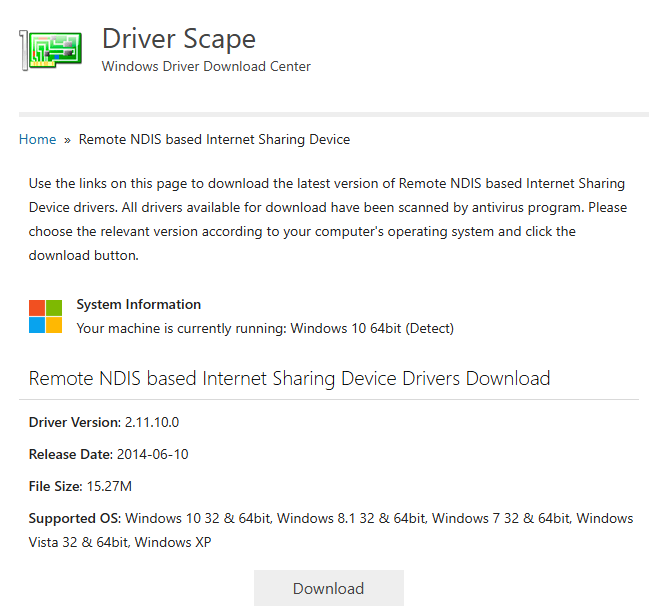
DriverScape is a reliable and easy-to-use platform for addressing driver-related issues, including USB tethering problems. By downloading the correct driver from this site, such as the Remote NDIS Based Internet Sharing Device Driver, you can quickly restore functionality and improve your device’s performance.
How To Fix Android USB tethering is one of the most searched troubleshooting topics for users who rely on their Android phone’s mobile data to provide internet to a PC or laptop via USB. Whether you’re a student, remote worker, or traveler, USB tethering offers a stable, fast connection without draining your phone’s battery as quickly as a Wi-Fi hotspot. But when it stops working—showing “no internet,” grayed-out options, or driver errors—it can be incredibly frustrating.
How To Fix Android USB tethering starts with understanding common causes. Faulty USB cables or ports, outdated or missing Remote NDIS drivers, incorrect phone settings, and power management conflicts on Windows are frequent culprits. This comprehensive guide, based on proven troubleshooting steps, will walk you through fixes from the simplest to more advanced solutions. Follow them in order for the best results.
Preliminary Checks: Quick Wins for How To Fix Android USB Tethering
How To Fix Android USB tethering often resolves with basic hardware checks. First, try a different USB cable—many charging-only cables lack proper data lines needed for tethering. Test the cable on another device if possible. Also, switch USB ports on your PC, preferably using rear motherboard ports instead of front-panel ones, as they can have power or connectivity issues.
Restart both your Android phone and Windows PC after swapping cables or ports. Disable Wi-Fi on your phone to avoid conflicts, as active wireless connections can interfere with USB tethering. These simple steps fix a surprising number of cases.
Enable Developer Options and Optimize Android Settings for How To Fix Android USB Tethering
How To Fix Android USB tethering frequently requires tweaking hidden settings on your phone. Go to Settings > About phone (or Software information on some devices). Tap Build number 7–10 times until you see the message that Developer options are enabled. Enter your PIN if prompted.
Return to the main Settings menu, tap System > Developer options. Scroll down and enable Tethering hardware acceleration. Then locate Default USB configuration and set it to USB tethering. This ensures your phone prioritizes tethering when connected.
Connect your phone to the PC via USB. Swipe down the notification shade on your phone and select File Transfer or MTP mode if prompted. Toggle USB tethering on in Settings > Network & internet > Tethering & portable hotspot (exact path may vary slightly by Android version or manufacturer).
Install or Update Drivers on Windows for How To Fix Android USB Tethering
How To Fix Android USB tethering on Windows 10 or 11 often boils down to the Remote NDIS based Internet Sharing Device driver. Open your browser and search for “Remote NDIS based Internet Sharing Device driver download” or use a trusted source. The driver works across brands including Samsung, Google Pixel, Xiaomi, and Huawei.
After downloading and installing the driver:
- Open Control Panel > Network and Internet > Network and Sharing Center.
- Click Change adapter settings.
- Look for USB NCM Host Device or Remote NDIS based Internet Sharing Device.
- Right-click it and select Enable if it has a red X or is disabled.
Restart your PC and phone, then reconnect. This step resolves detection issues for most users.
Additional Troubleshooting Steps for Stubborn How To Fix Android USB Tethering Issues
How To Fix Android USB tethering may require checking Device Manager on Windows. Press Windows + X and select Device Manager. Expand Network adapters. Right-click the Android-related device (often listed as Remote NDIS), choose Update driver, and search automatically or browse to the downloaded driver.
Disable power-saving features that interrupt USB connections: In Device Manager, go to the device properties > Power Management tab, and uncheck “Allow the computer to turn off this device to save power.” Also adjust USB Selective Suspend settings in Power Options.
Update your phone’s software and check APN settings with your carrier if tethering remains grayed out. Some carriers restrict tethering; contact them or use workarounds if needed.
Optimizing Speed and Stability After How To Fix Android USB Tethering
How To Fix Android USB tethering isn’t just about getting it working—it’s about making it reliable. Use a high-quality USB 2.0 or 3.0 cable for better speeds. Keep your phone’s data connection strong (good signal) and close background apps draining bandwidth. Monitor connection in Windows Network settings for consistent performance.
Many users report excellent results on Windows 11 with these steps, including Samsung devices and Google Pixels. If issues persist, test with another phone or PC to isolate hardware problems.
Why This Guide Works for How To Fix Android USB Tethering
How To Fix Android USB tethering problems affect thousands daily, especially after OS updates or with budget cables. By methodically addressing hardware, phone settings, drivers, and Windows configurations, you restore connectivity quickly without third-party apps in most cases.
This detailed walkthrough provides both beginners and advanced users with actionable steps. Bookmark it for future reference and share with friends facing the same issue.
How To Fix Android USB tethering successfully will transform your workflow, giving you wired reliability wherever mobile data is available. If you followed these steps and it worked, drop a comment below with your device model and Windows version to help others. For more tech tutorials, explore related guides on networking and Android optimization.
To download the Remote NDIS Based Internet Sharing Device Driver, follow these steps:
Visit the
DriverScape website
Click on the “Download” button for your device’s driver.
Follow the on-screen instructions to install the driver on your PC.
DriverScape makes the process straightforward, even for those without extensive technical knowledge.