
10 Ways To Improve Steam Downlaod Speed!
Quick answer
To speed up Steam downloads, open Steam › Settings › Downloads, switch the Download Region to a nearby city that is less busy, click Clear Download Cache, and turn off Limit download speed. If it is still slow, connect your PC to the router with an Ethernet cable and close other apps that are downloading.
Steam can only download as fast as your internet plan allows, but most slow downloads have nothing to do with the plan. They come from a busy server, a forgotten speed limit, weak Wi-Fi, or a hard drive that can’t keep up. The 10 fixes below go from quickest to most involved, and most people are back to full speed after the first four.
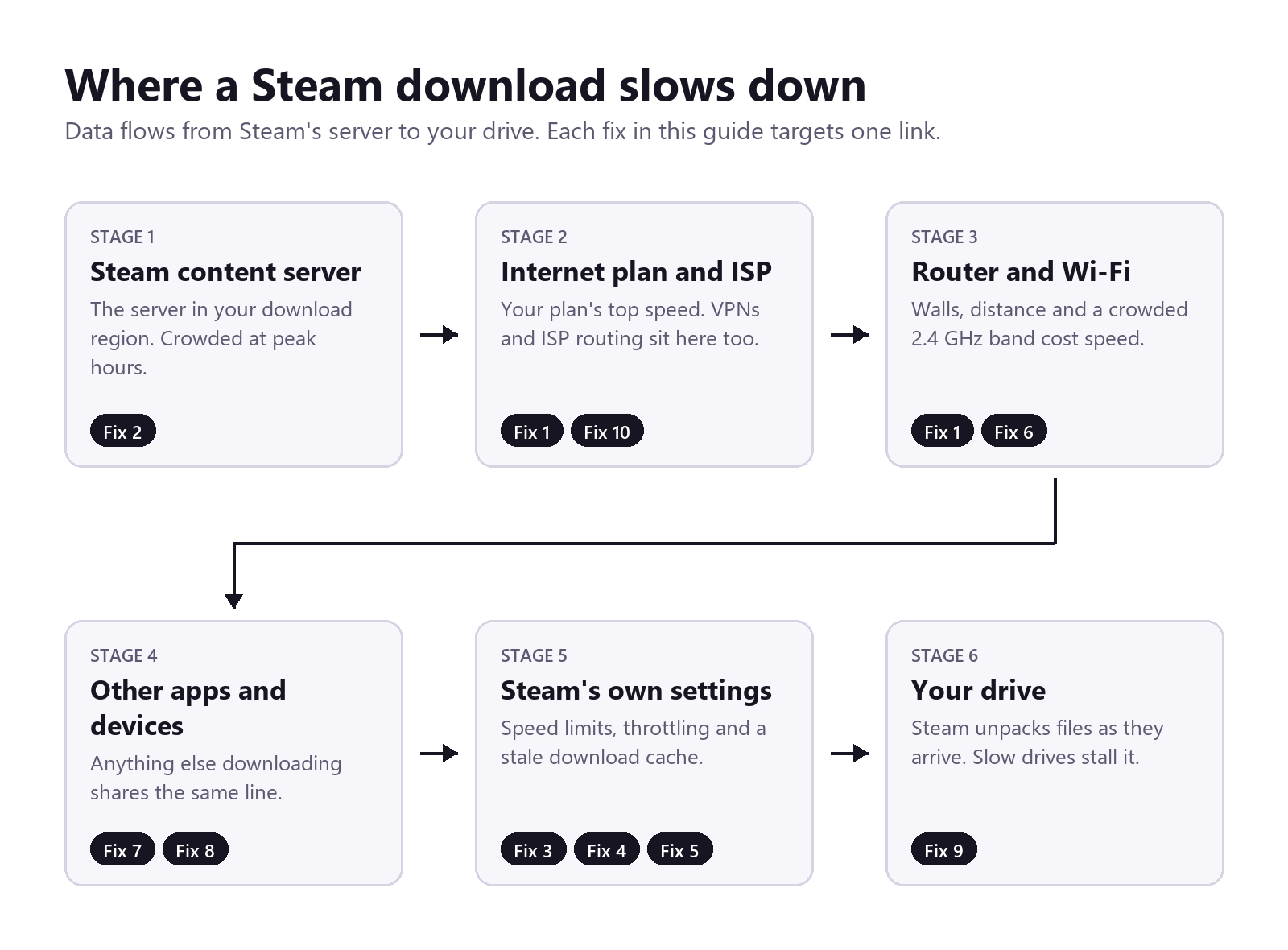
Every slow download comes from one link in the chain between Steam’s servers and your drive. The diagram shows which fix targets which link, so you can skip straight to the likely cause.
1Find your real speed ceiling
Steam shows speed in megabytes per second (MB/s). Internet providers sell plans in megabits per second (Mbps). A byte is 8 bits, so divide your plan by 8 to get the fastest speed Steam can ever show.
- Pause Steam, then run a speed test at fast.com or speedtest.net.
- Divide the result by 8. A 300 Mbps result means about 37 MB/s in Steam.
- If the test is far below what you pay for, unplug your modem and router for 30 seconds, plug them back in and test again.
| Internet plan | Top Steam speed | 100 GB game, at best |
|---|---|---|
| 50 Mbps | 6.25 MB/s | about 4 h 30 min |
| 100 Mbps | 12.5 MB/s | about 2 h 15 min |
| 300 Mbps | 37.5 MB/s | about 45 min |
| 500 Mbps | 62.5 MB/s | about 27 min |
| 1 Gbps | 125 MB/s | about 14 min |
Tip: Rather see Mbps? Turn on Display download rates in bits per second in Steam › Settings › Downloads and Steam’s number will match your speed test.
2Change your download region
Steam downloads from a content server in the region you pick. In the evening and on big launch days that server gets crowded, while one a few hundred kilometres away may be nearly idle. This is the single most effective fix for downloads that are slow only at certain times.
- Open Steam › Settings › Downloads.
- Open the Download Region list and pick another nearby city, ideally in a neighbouring state or country.
- Watch the speed for a minute. If it is worse, try another region or switch back. Steam may ask to restart.
Tip: The closest server is not always the fastest. Test two or three regions before you settle on one.
3Clear the download cache
Steam keeps temporary data about your downloads. When that data gets corrupted, downloads crawl, sit at 0 bytes or fail with disk errors. Clearing it is safe: installed games and saves are not touched.
- Open Steam › Settings › Downloads.
- Click Clear Download Cache and confirm.
- Steam restarts. Sign in again if it asks, then resume the download.
4Turn off the download speed limit
A speed cap is easy to set once and forget. It holds every download below the number you typed, whatever your connection can do.
- Open Steam › Settings › Downloads.
- Turn off Limit download speed.
- Pause and resume the download so the change takes effect.
5Let Steam download while you play
Steam can pause downloads while a game is running and slow them while you stream with Remote Play. If you start a big download and then launch a game, the download may be sitting idle.
- In Steam › Settings › Downloads, turn on Allow downloads during gameplay.
- Turn off Throttle downloads while streaming.
- To change this for one game only, right-click it in your Library and open Properties › Updates, then set Background downloads.
Heads up: Downloading while you play online adds lag. If you play competitive games, leave this off and download between sessions.
6Use a cable instead of Wi-Fi
Wi-Fi loses speed through walls and over distance, and it shares airtime with every phone and TV in the house. An Ethernet cable gives your PC a direct line to the router. For desktop PCs it is often the biggest single jump.
- Connect the PC to a free LAN port on the router with an Ethernet cable. Cat 5e or newer handles 1 Gbps.
- No cable? Join the router’s 5 GHz or 6 GHz network instead of 2.4 GHz, and move closer if you can.
Tip: If the router is in another room, a mesh node or a pair of powerline adapters near the PC is the next best thing to a cable.
7Free up your bandwidth
Everything that downloads at the same time shares your connection: browsers, cloud sync such as OneDrive or Google Drive, other game launchers, a TV streaming in 4K, a console updating in another room.
- Press Ctrl + Shift + Esc, open Processes, and click the Network column to sort by it. Close or pause the heaviest apps.
- Pause other launchers and cloud sync until Steam finishes.
- On Steam’s Downloads page, move the game you want to the top of the queue so updates for other games wait their turn.
8Stop Windows from sharing your bandwidth
Delivery Optimization lets Windows send update files to other PCs, which uses your connection in the background. Windows Update can also be downloading at the same time as Steam.
- Open Settings › Windows Update › Advanced options › Delivery Optimization.
- Turn off Allow downloads from other devices.
- If Windows Update is downloading, let it finish or pause updates for a week while Steam catches up.
9Check whether your drive is the bottleneck
Steam unpacks and writes each piece of a game as it arrives. On a slow hard drive, or with antivirus scanning every new file, the drive falls behind and Steam pauses the network to let it catch up. That is why the speed sometimes drops to zero and then jumps back.
- Open Steam’s Downloads page and watch the graph. If disk usage stays at its peak while the network line drops, the drive is the limit.
- Install big games to an SSD. Add a library folder on the SSD in Steam › Settings › Storage.
- In Windows Security, add your Steam library folder (for example
C:\Program Files (x86)\Steam\steamapps) to the antivirus exclusions.
Heads up: Exclude only the Steam library folder, never a whole drive, so the rest of your PC stays protected.
10Rule out your VPN and network driver
A VPN sends your traffic through another server, which usually lowers speed and can make Steam pull files from a far-away region. An outdated network driver can also cap your speed.
- Disconnect your VPN or proxy, restart Steam and check the speed again.
- Update your network adapter driver from your PC or motherboard maker’s website.
- Restart the PC after the update.
Tip: If Steam is actually faster with the VPN on, your provider is probably slowing large downloads at peak times. Keeping the VPN on for Steam downloads is reasonable in that case.
+Bonus: copy games from another PC at home
If a game is already installed on another PC in your home, Steam can copy it over your local network instead of downloading it again. On a wired home network that is often faster than any internet plan.
- On both PCs, open Steam › Settings › Downloads and set Game File Transfer over Local Network to Only me.
- Keep Steam open and signed in to your account on both PCs, on the same network.
- Install the game on the new PC. Steam uses the local copy automatically.
Tweaks that don’t help much
- Changing your DNS server. DNS only looks up addresses. It doesn’t change how fast the game files arrive.
- Setting Steam to High priority in Task Manager. It helps only on very old CPUs, and the setting resets every time Steam restarts.
- Download accelerator apps. They can’t make your plan faster, and some of them bundle adware.
Frequently asked questions
Why is my Steam download slow when my internet is fast?
Usually a crowded download region, a speed limit in Steam’s settings, Wi-Fi, or a slow hard drive. Check the units too: Steam’s MB/s is one eighth of your plan’s Mbps, so 37 MB/s on a 300 Mbps plan is already full speed.
Why does my Steam download keep dropping to 0?
Steam pauses the network while it unpacks and writes the files it has downloaded. Short drops are normal. Long drops while the disk graph is maxed out mean your drive is too slow (see fix 9).
What is a good Steam download speed?
Anything between 80% and 90% of your plan divided by 8. On a 100 Mbps plan that is 10 to 11 MB/s, and on a 500 Mbps plan it is 50 to 56 MB/s.
Does changing the download region really help?
Yes. It is the most reliable fix for downloads that are slow only at certain times of day, because it moves you off a busy server.
Will a VPN make Steam download faster?
Almost never. A VPN adds a detour. The exception is a provider that slows down large downloads, where a VPN hides what kind of traffic it is.
Bottom line
Start with fixes 2, 3 and 4. They take two minutes, all live on one settings page, and solve most slow Steam downloads. If you are still below your plan’s speed divided by 8, switch to a cable and check your drive.
