
How to Combine Internet Connections for Faster Downloads (Free Tool)
Quick answer
To combine internet connections on a PC, use the free, open-source tool net-merge. It spreads your apps’ connections over Wi-Fi, Ethernet and your phone’s hotspot at the same time:
- Install it: one command in PowerShell (Windows) or Terminal (Mac, Linux)
- Add a 2nd link: USB tethering, a hotspot or Ethernet
- Check the icon: green means it’s merging
- Download: Steam, browsers and torrents now use every link
On my PC, a speed test went from 13 Mbit/s on my phone alone to 149 Mbit/s with all three merged.
Most PCs have more internet than they use. Your laptop might be on Wi-Fi, have an Ethernet port, and sit next to a phone with a 5G plan, yet Windows sends everything down one connection while the others do nothing. net-merge, a free, open-source tool, fixes that without a VPN, a server or an account. This guide shows how it works, how to install it on Windows, macOS, Linux and Android, how to add a second connection, and the real speeds I got in my one-minute video test.
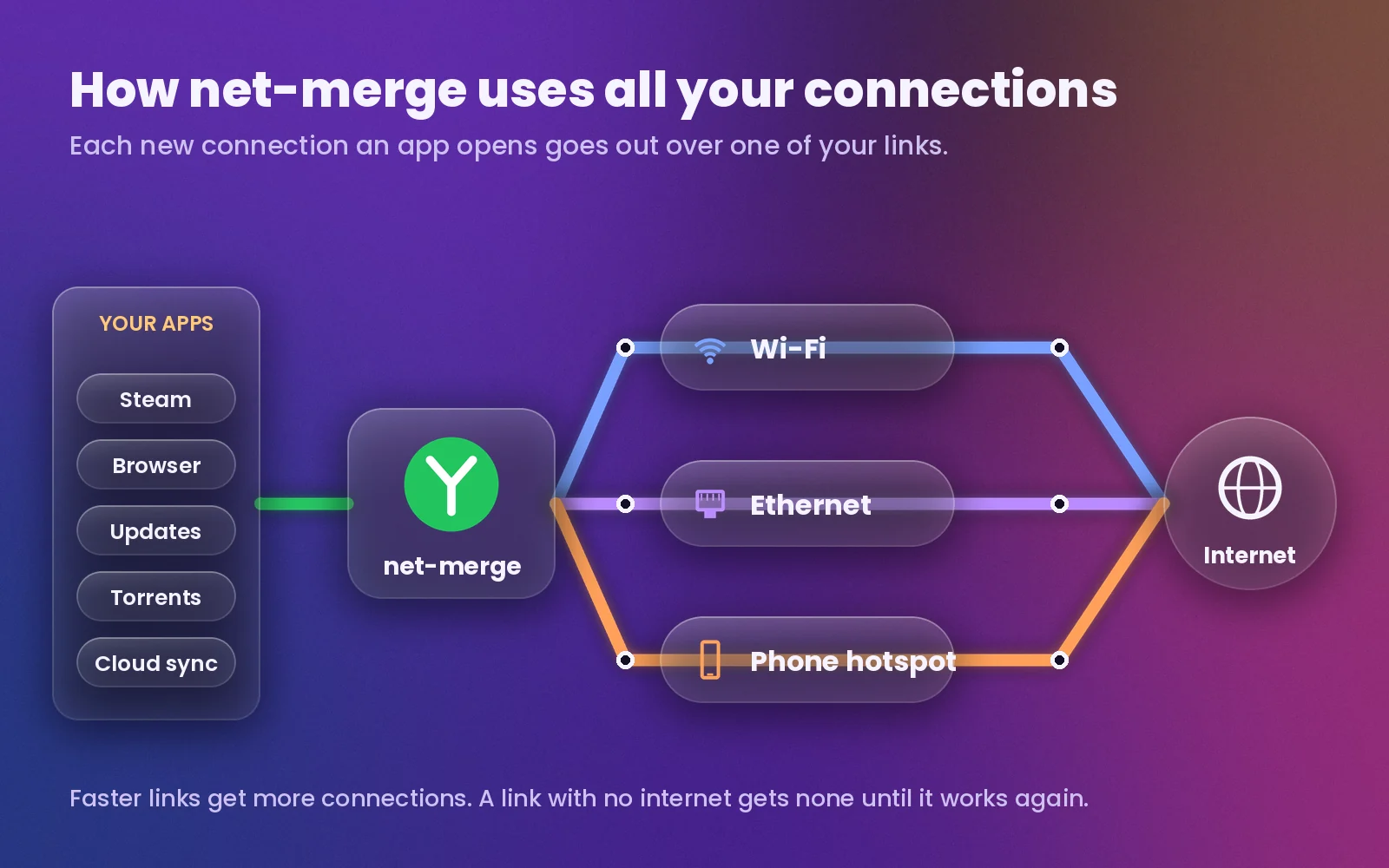
Here’s the whole idea in one picture: your apps talk to net-merge, and net-merge sends each new connection out over a different link.
How net-merge combines your connections
net-merge doesn’t split one stream of data into pieces. Instead, it gives every new connection to one of your links. A game store or a browser opens dozens of connections at once, so those connections end up spread across Wi-Fi, Ethernet and your phone, and the total speed adds up.
- Smart balancing: faster links get more connections. A link that loses internet gets none until it works again.
- Every app: it works for TCP and UDP, over IPv4 and IPv6, with no proxy settings in your apps.
- Safe to try: if net-merge quits or crashes, your internet keeps working and your network settings go back to normal.
- Light: the developer measures about 0.18 CPU cores per 100 Mbit/s.
- Private: everything runs on your computer. It only contacts 1.1.1.1 and 8.8.8.8 to check your links, and GitHub to check for updates.
Heads up: One single connection always stays on one link. A single large file from one server, one video stream or one online match won’t get faster. The bonus tip shows how to split browser downloads so they do.
1What you need before you start
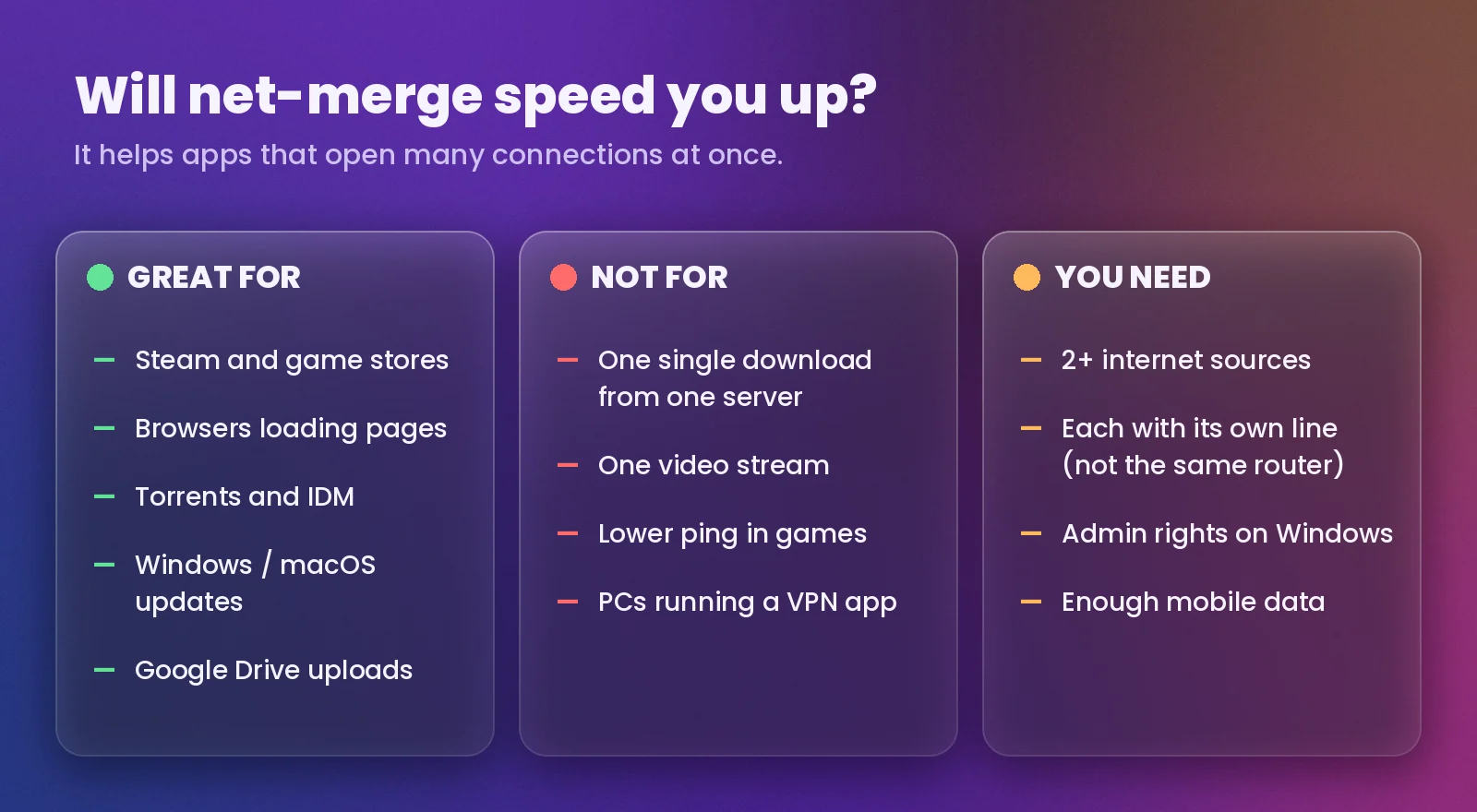
The one rule that matters: each connection needs its own path to the internet. Wi-Fi from your home router plus a phone on mobile data works. Wi-Fi and Ethernet plugged into the same router don’t, because they share one internet line.
- Two or more internet sources, for example home Wi-Fi plus your phone, or Ethernet from one provider plus Wi-Fi from another.
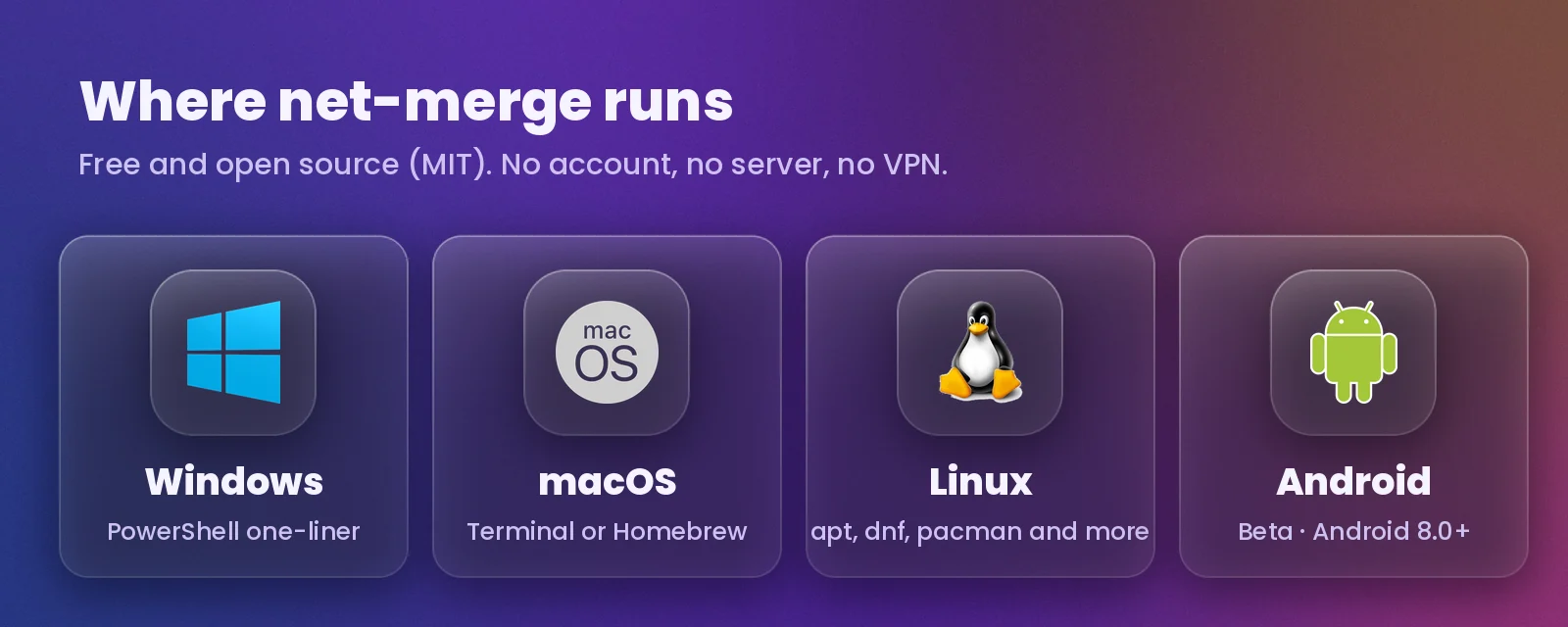
- A supported system: Windows, macOS or Linux, or Android 8.0 or newer for the phone app (beta).
- Admin rights: an administrator account on Windows,
sudoonce on macOS. On Linux the packages set the network rights for you. - No VPN app running on the same computer. A VPN pulls all traffic through itself, so there’s nothing left to split.
- Enough mobile data if one link is your phone. Part of every download goes through it.
net-merge runs on all the big desktop systems, and there’s a beta app for Android phones too.
2Install net-merge on Windows
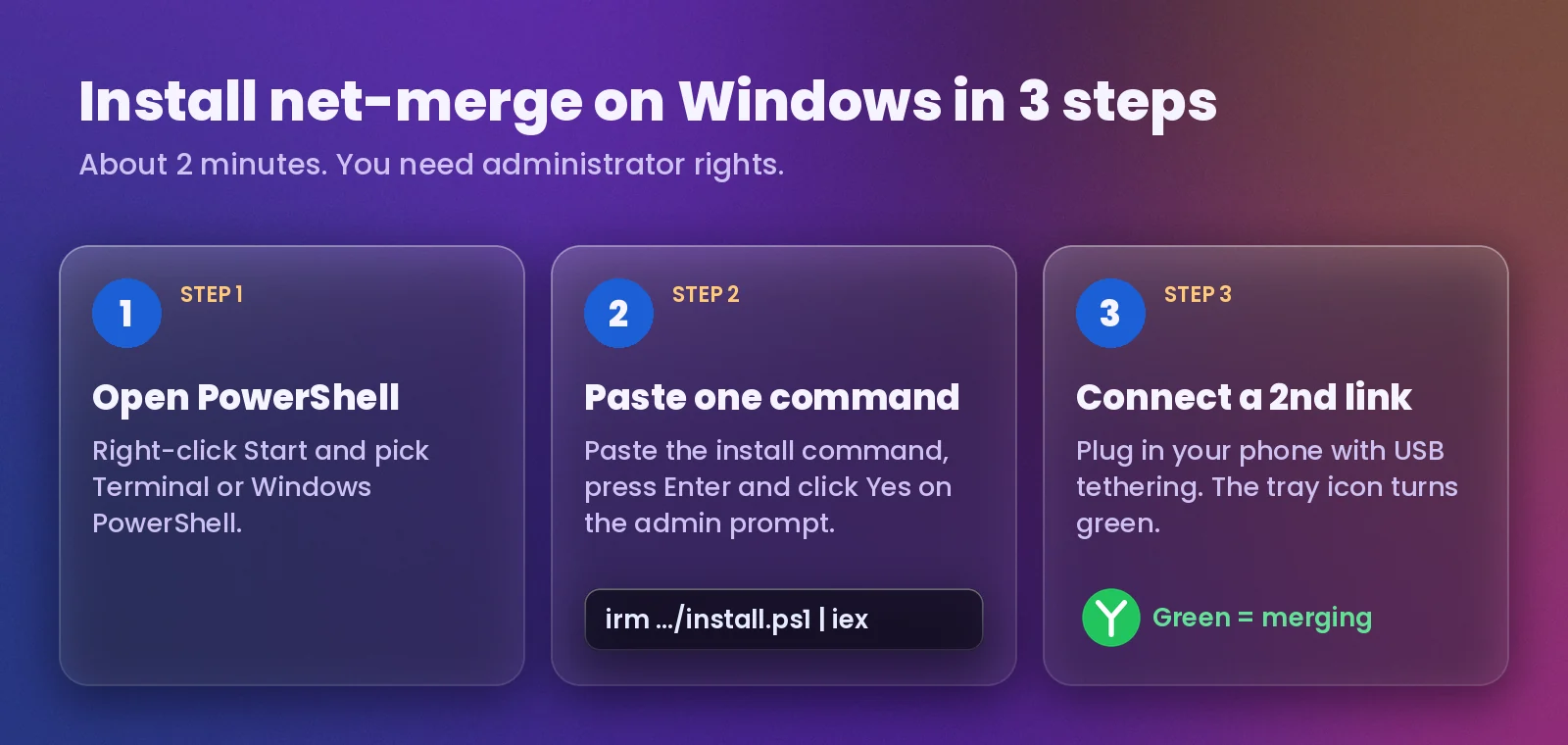
The official installer is a single PowerShell command. It downloads the latest release from GitHub, installs it and puts the net-merge icon in your system tray.
- Right-click the Start button and choose Terminal (Windows 11) or Windows PowerShell (Windows 10).
- Paste this command and press Enter:
irm https://raw.githubusercontent.com/net-merge/net-merge/main/install.ps1 | iex - Click Yes on the administrator prompt.
- Look for the net-merge icon next to the clock. If you can’t see it, click the ^ arrow.
- Optional: tick Start at sign-in in its menu so it runs every time you log in.
Heads up: The app isn’t code-signed yet, so Windows may say “Windows protected your PC”. Click More info, then Run anyway. If your antivirus blocks the script, download net-merge-setup.exe from the official releases page and run it instead.
3Install it on macOS, Linux or Android
On a Mac or a Linux PC, one command does it. The script uses Homebrew on a Mac when you have it, and your package manager (apt, dnf, zypper, apk or pacman) on Linux, so net-merge updates with the rest of your system.
- Open Terminal and run:
curl -fsSL https://raw.githubusercontent.com/net-merge/net-merge/main/install.sh | sh - Prefer Homebrew on a Mac? Use this instead:
brew install net-merge/tap/net-merge && sudo "$(brew --prefix)/bin/net-merge" install && net-merge tray - Find the icon in the menu bar (Mac) or system tray (Linux). On Linux, start it later with
net-merge tray. - Android (beta): download
net-merge-android.apkfrom the Android releases page, install it, open it, tap the power button and tap OK on the VPN prompt. It merges Wi-Fi and mobile data on the phone itself.
Tip: If macOS says it can’t open net-merge, run xattr -d com.apple.quarantine net-merge. On Linux, the tray icon needs a desktop with StatusNotifierItem support; Ubuntu, KDE, XFCE and Cinnamon have it. Copy-ready commands for every distribution are in the net-merge README.
4Add your second connection
The easiest second link is your phone. A USB cable beats a Wi-Fi hotspot here, because your PC’s Wi-Fi card stays free for your home network. net-merge picks up a new link within a few seconds, and when you unplug it, its connections move to the others.
| Your setup | How to connect the phone |
|---|---|
| Windows or Linux + Android | Plug in the cable, then turn on USB tethering in the phone’s hotspot settings |
| Windows or Linux + iPhone | Plug in the cable and turn on Settings › Personal Hotspot |
| Mac + iPhone | Plug in, tap Trust, then turn on Allow Others to Join under Personal Hotspot |
| Mac + Android | Install the free app TetherKit, turn on USB tethering, then click Apply in TetherKit |
| Second internet line | Plug its Ethernet cable in, or join its Wi-Fi with a second Wi-Fi adapter |
On most Android phones, USB tethering is under Settings › Network & internet › Hotspot & tethering. On Samsung phones it’s Settings › Connections › Mobile Hotspot and Tethering.
Tip: On a Mac with an Android phone, start net-merge first and connect the phone after. macOS drops the TetherKit link each time net-merge starts or quits; if that happens, click Apply in TetherKit again.
5Check that it’s merging
The tray icon tells you the state at a glance: green means it’s merging, grey means it’s paused. It pauses by itself when fewer than two links have internet, and starts again on its own when the second one comes up.
- Hover over the icon to see each connection’s speed and the total.
- Right-click it (click it on a Mac) to open the menu. Each link shows its speed and how many connections net-merge gave it.
- Start a big Steam download or run a speed test, and watch every link carry traffic.
- Click a connection in the menu to cap it at 1 to 100 Mbit/s, which is handy to save mobile data.
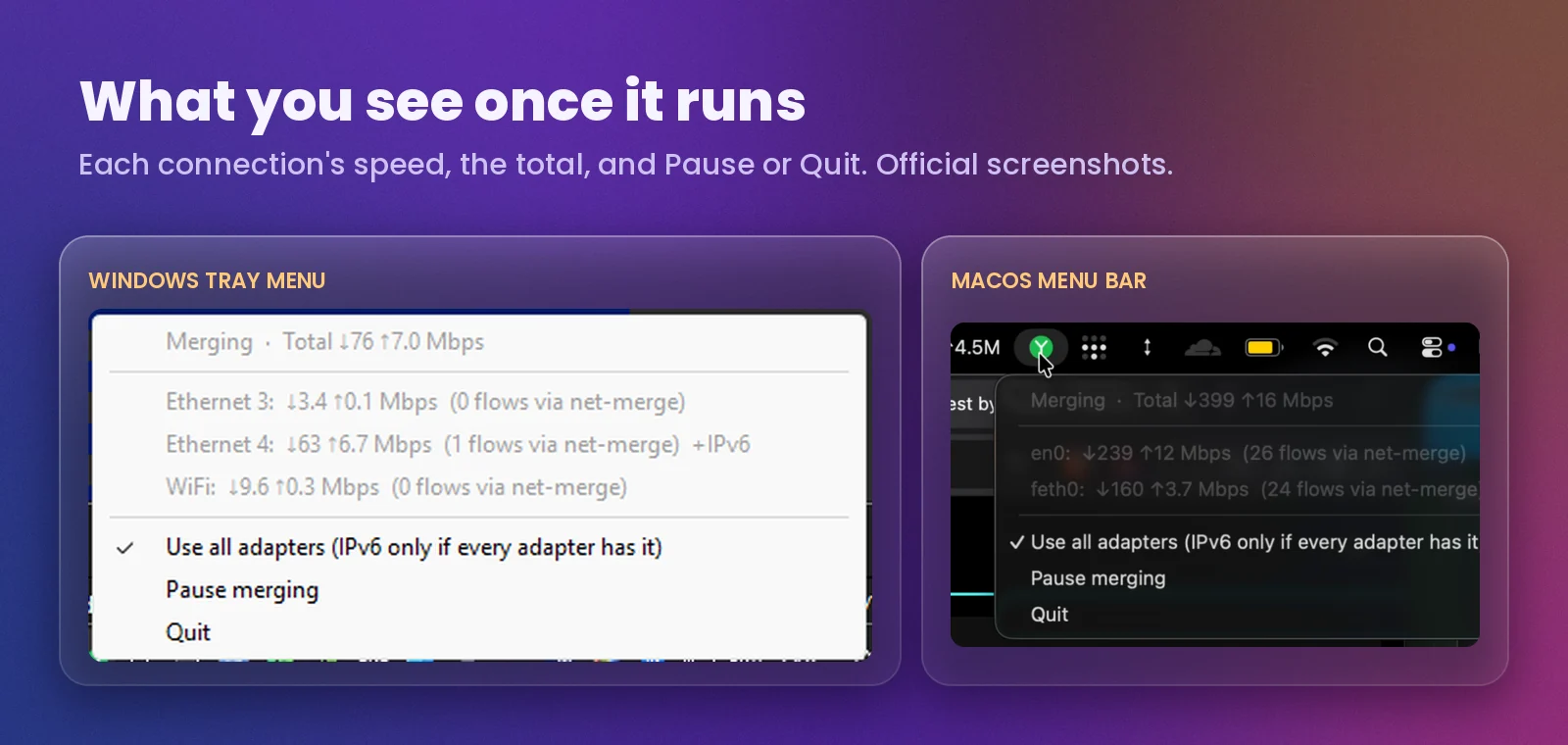
Tip: From a terminal, net-merge status shows live numbers and net-merge list shows which links are used and why any are skipped.
My speed test results
For my YouTube Short I ran Ookla Speedtest on my own PC. With only my phone’s connection, it measured 13.16 Mbit/s. With Wi-Fi, Ethernet and the phone hotspot merged by net-merge, the same test reached 149.28 Mbit/s. A speed test opens several connections at once, which is exactly the kind of traffic net-merge spreads out.
The developer’s own test is the fairer comparison, because it measures against the fastest single link: Wi-Fi plus an Android USB tether plus an iPhone hotspot, with 9 downloads at once, gave 232 to 303 Mbit/s, against about 121 Mbit/s on the best link alone. That’s up to about 2.5 times faster.
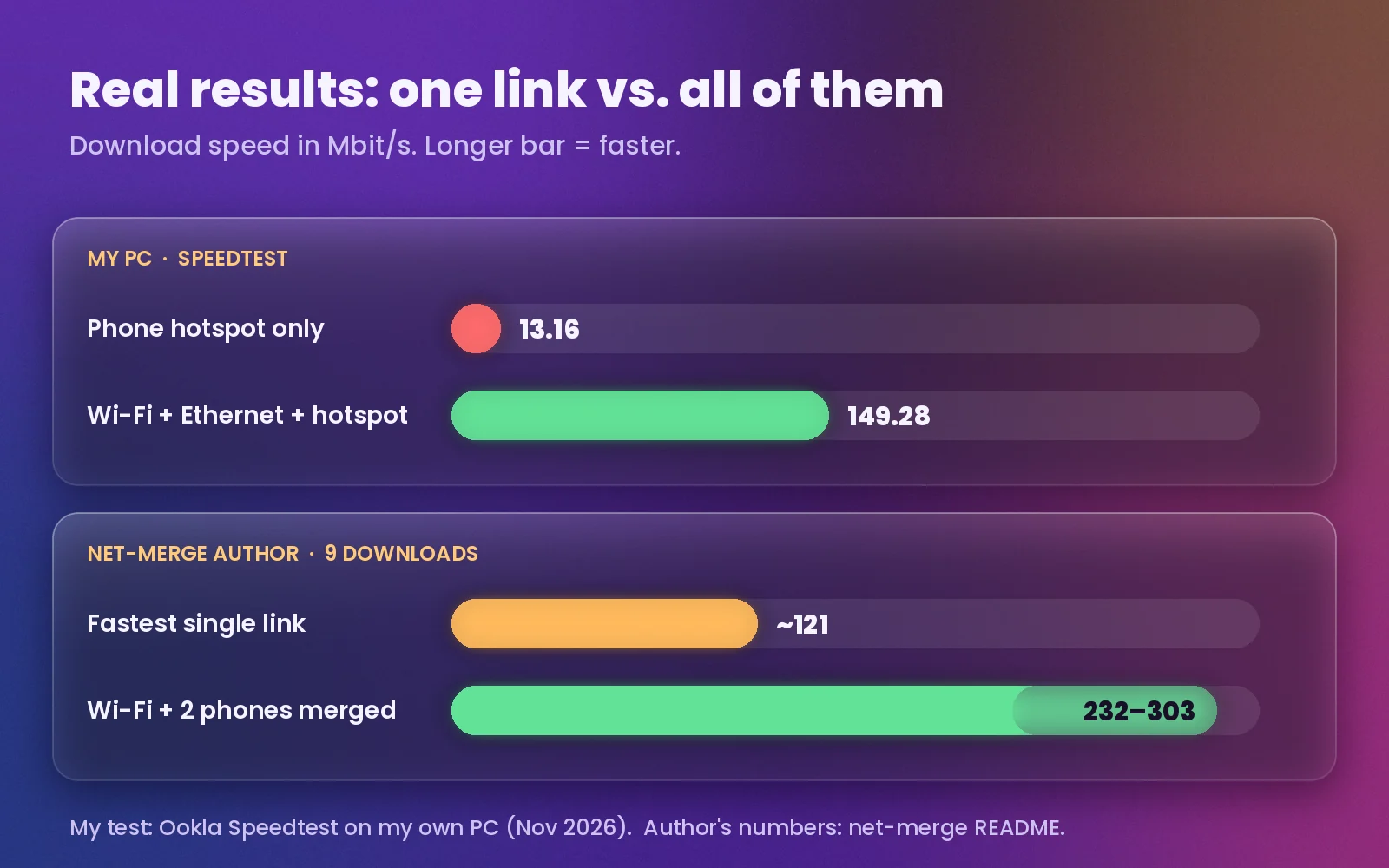
Your gain depends on how fast each link is. Adding a slow phone to fast fiber adds little; combining two similar connections can nearly double your download speed.
Want to see the test? Here’s the one-minute YouTube Short where I set it up and run the speed tests.
6Fix it when it doesn’t speed up
If the total stays the same, it’s almost always one of these:
- Both links share one router. Wi-Fi and Ethernet from the same box use the same internet line. Use a phone or a second provider instead.
- Windows turns Wi-Fi off when Ethernet is plugged in. Open
gpedit.msc, go to Computer Configuration › Administrative Templates › Network › Windows Connection Manager and set Minimize the number of simultaneous connections to the Internet or a Windows domain to Disabled. - The phone doesn’t show up on Windows. Install your phone maker’s USB driver, then turn USB tethering off and on.
- The menu says “Paused: one connection”. The second link has no internet yet. Run
net-merge listto see why, for example “no default gateway”. - A VPN app is on. Turn it off, or set the VPN up on your router instead.
- You’re testing one big file. One connection uses one link. Try a Steam download or use the bonus tip below.
Tip: Torrent clients already use every link. In qBittorrent, leave the network interface on Any interface. For more Steam fixes, see my guide to improve Steam download speed.
+Bonus: make single downloads faster too
A browser normally downloads a file over one connection, so it only uses one link. Chrome, Edge and Brave can split a file into parts instead, and net-merge then spreads those parts across all your links.
- Open
chrome://flags/#enable-parallel-downloading(Edge:edge://flags/#enable-parallel-downloading, Brave:brave://flags/#enable-parallel-downloading). - Set Parallel downloading to Enabled and click Relaunch.
- In Firefox, use a download manager instead, for example
aria2c -x 8 -s 8followed by the link.
This only helps when the server allows downloading a file in parts, which most large download sites do.
Official net-merge website and GitHub
net-merge is made by developer Rohit Mahto and released for free under the MIT license. I’m not affiliated with the project; this guide just shows how I set it up. Always download it from the official sources below, and check them for the newest version, the full install commands for every Linux distribution and the latest fixes.
| Official link | What you’ll find there |
|---|---|
| net-merge.org | The official website: how it works, install commands and FAQ |
| github.com/net-merge/net-merge | Source code, full README, troubleshooting and bug reports |
| Latest release | The Windows installer, portable zip and Mac and Linux downloads |
| github.com/net-merge/android | The Android beta app and its downloads |
Tip: The tray menu screenshots in this guide come from the net-merge GitHub repository. If the tool saves you time, star the project on GitHub or support the developer through the links on its website.
Common mistakes when combining connections
- Expecting lower ping in games. A match uses one connection on one link. net-merge speeds up the game download, not your ping.
- Merging Wi-Fi and Ethernet from the same router. It’s the same internet line twice, so the total doesn’t change.
- Forgetting the phone bill. Mobile data stays in use while net-merge runs. Quit it or cap the phone link when you don’t need the speed.
- Wondering why a site logs you out. Some sites tie your login to one IP address, and net-merge may use a different one per connection. Just sign in again.
Frequently asked questions
Can you combine two internet connections for faster speed?
Yes. A tool like net-merge spreads your apps’ connections over every link, so apps that open many connections at once, such as Steam, browsers and torrents, get the combined speed. One single connection still runs at one link’s speed.
Can I use Wi-Fi and Ethernet at the same time on Windows?
Yes, and net-merge will use both. You only gain speed when each one has its own internet line. If Windows switches Wi-Fi off when Ethernet is plugged in, change the Windows Connection Manager policy shown in fix 6.
Is net-merge free and safe?
It’s free and open source under the MIT license, with no account, server or VPN. It runs on your computer, and if it quits or crashes your internet keeps working. The apps aren’t code-signed yet, so Windows and macOS show a warning the first time.
Does net-merge use my mobile data?
Yes. When a phone is one of your links, part of your traffic goes over its mobile data. Watch your data plan, cap the phone link in the menu, or quit net-merge when you don’t need the extra speed.
How do I uninstall net-merge?
On Windows, use Settings › Apps › Installed apps › net-merge › Uninstall. On macOS and Linux, run the install command with -s -- uninstall added at the end. Your network goes back to normal as soon as it stops.
Bottom line
Install net-merge with one command, plug in your phone with USB tethering, and check that the tray icon turns green before you start a big download. If the speed doesn’t go up, make sure each link has its own internet line and that no VPN app is running.
