
Handy Review: The Best Free Dictation App for Windows (Offline, 99+ Languages)
Quick answer
The best free dictation app for Windows I’ve used is Handy. It’s open source, needs no account, and turns your voice into text offline, right on your own PC:
- Download it free from handy.computer (Windows, macOS, Linux)
- Pick a model: Parakeet V3 for English, Whisper for 99+ languages
- Click into any text box and press your shortcut
- Talk: your words are typed at the cursor
On my PC, a full spoken sentence was transcribed in 1.1 seconds, with no audio sent to the cloud.
Windows has had built-in dictation for years, and it still mishears simple sentences. I recently switched to Handy, a free dictation app that works entirely on your own computer. You press a shortcut, talk, and your words appear in whatever app you’re typing in. This review covers what Handy is, how to install it, which speech model to pick, what it did on my own PC, and where it still has limits.
Handy’s own tagline sums it up: speak into any text field, in any app. (Image: handy.computer)
What is Handy?
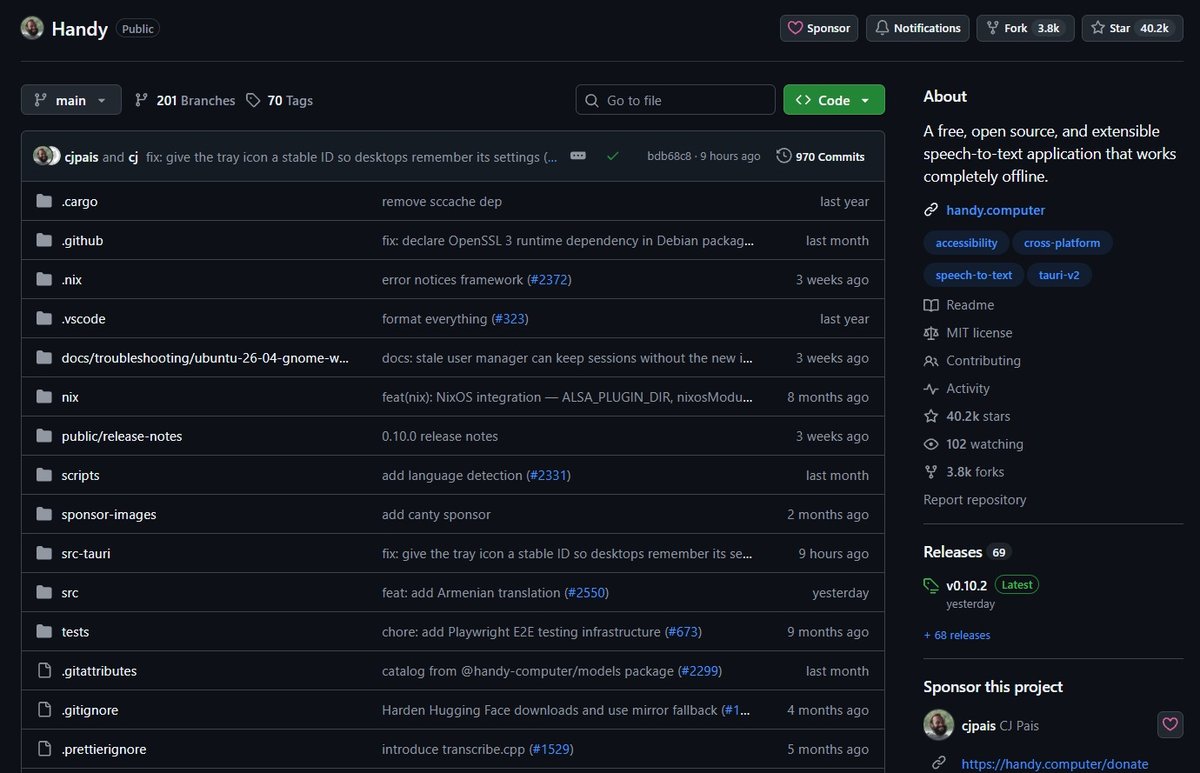
Handy is a desktop app made by developer CJ Pais. Its GitHub page describes it as “a free, open source, and extensible speech-to-text application that works completely offline.” It’s built with Tauri, a Rust-based app framework, and runs on Windows, macOS and Linux.
The idea is simple: one tool, one job. Handy isn’t a meeting recorder or a note-taking app. It turns your voice into text and puts that text wherever your cursor is: a browser, Word, a chat app, an AI prompt box or your code editor.
It’s also popular. On 25 November 2026, the official GitHub repository had 40.2K stars and 3.8K forks. It’s released under the MIT license, and the latest version is v0.10.2 (24 November 2026).
Why not just use Windows dictation?
Windows comes with voice typing built in: press Win + H. It works, but in my experience it often gets words wrong, especially words that sound alike, so I end up fixing the text by hand. That defeats the point of dictating in the first place.
Handy takes a different approach. Instead of one fixed engine, it lets you download modern open speech-recognition models, such as OpenAI’s Whisper and NVIDIA’s Parakeet, and runs them on your own hardware. You choose the model that fits your language, your speed needs and your PC.
Key features
- Free and open source (MIT license). No account and no subscription.
- Runs offline. Transcription happens on your own computer.
- Works in any app. The text is pasted wherever your cursor is.
- One shortcut. Hold it while you talk (push-to-talk), or tap once to start and again to stop.
- Many models to choose from, including Whisper (99+ languages), Parakeet V3, Cohere Transcribe, Moonshine, Canary, SenseVoice and GigaAM.
- Silence filtering with Silero VAD (voice activity detection), so pauses don’t turn into junk text.
- History of past transcriptions, with audio playback, copy and star buttons.
- Cross-platform: Windows, macOS and Linux.
- Optional AI post-processing (experimental) to fix grammar or reformat text with a local or cloud language model.
1How to install Handy
Always download Handy from its official sources: the official website or the GitHub releases page.
Windows
- Go to handy.computer and download the Windows installer.
- Run the installer and open Handy.
- Allow microphone access when Windows asks.
- Prefer the command line? Handy is also on winget (the package is maintained by the community, not by the Handy developers):
winget install cjpais.Handy
macOS
- Download it from the website, or install it with Homebrew (also community-maintained):
brew install --cask handy - On first launch, allow microphone and accessibility access. Handy needs both to hear you and to paste the text.
Linux (Debian / Ubuntu)
- Download the
.debfile from the releases page and install it with APT, so the dependencies come along automatically:sudo apt install ./Handy_*.deb
2First launch: pick a speech model
The first time you open Handy, a short setup walks you through everything: your languages, a keyboard shortcut and a speech model. The model is downloaded once, and from then on all transcription happens on your machine.
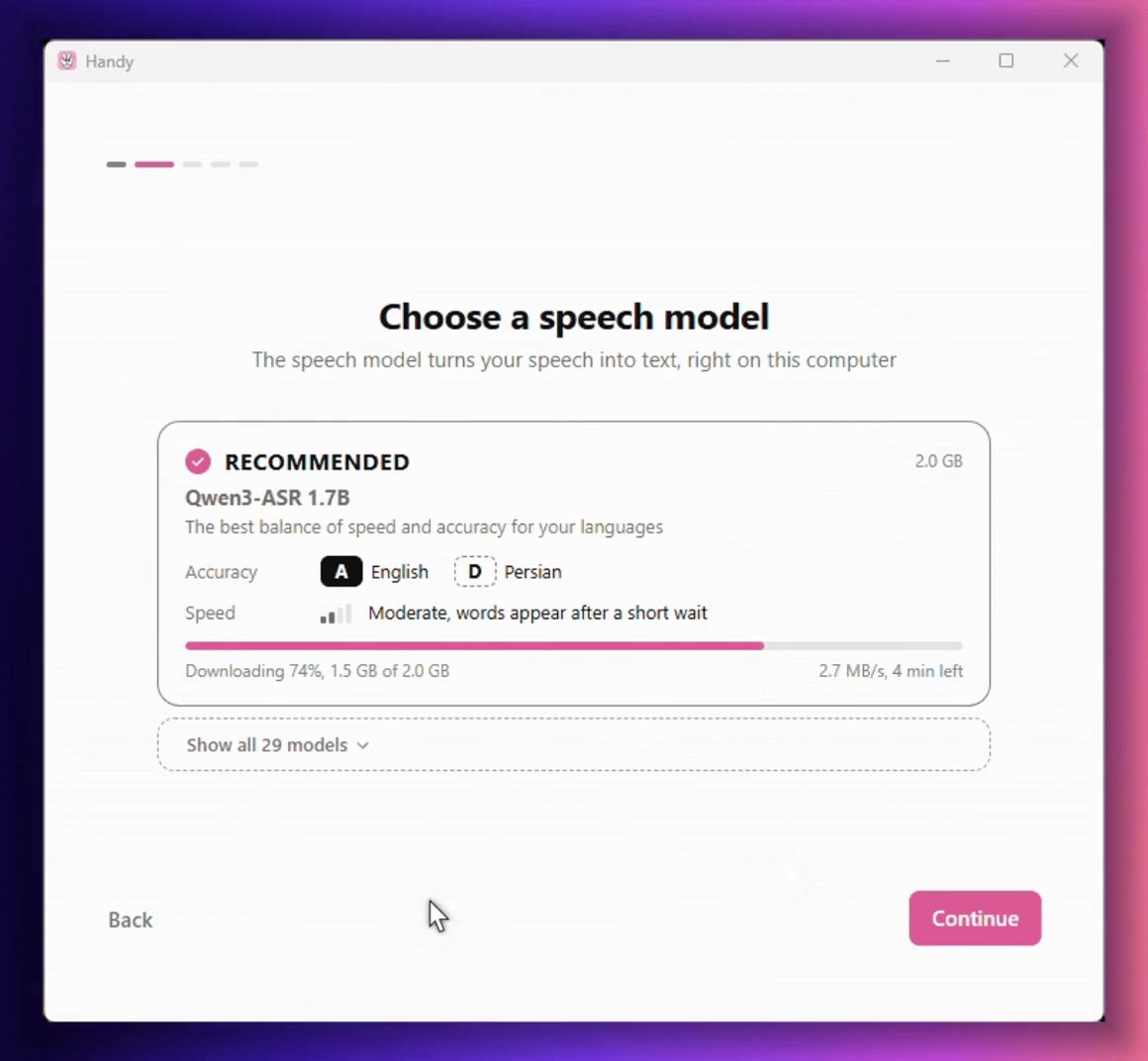
On my Windows PC, setup recommended Qwen3-ASR 1.7B, a 2.0 GB model, as “the best balance of speed and accuracy” for the languages I picked. It even showed an accuracy grade for each language. Click Show all models to choose a different one; my version listed 29.
Here’s a quick guide to the main options, based on Handy’s model documentation:
| Model | Download | Languages | Best for |
|---|---|---|---|
| Parakeet V3 | ~478 MB | 25 European | Most people: fast, accurate, detects the language automatically |
| Whisper Small / Medium | ~487 / ~492 MB | 99+ | Multilingual use; Medium is a good balance |
| Whisper Large / Turbo | ~1.1 / ~1.6 GB | 99+ | Highest Whisper accuracy on capable hardware |
| Cohere Transcribe | ~1.8 GB | 14 | Best English quality, ideally with a decent GPU |
| Moonshine V2 Small | ~100 MB | English only | Older or low-powered PCs |
Tip: Whisper and Cohere Transcribe use your graphics card automatically (Vulkan on Windows and Linux, Metal on a Mac). The other models currently run on the CPU. Parakeet writes numbers as words (“twenty”), while Whisper writes them as digits (“20”).
3How to use it every day
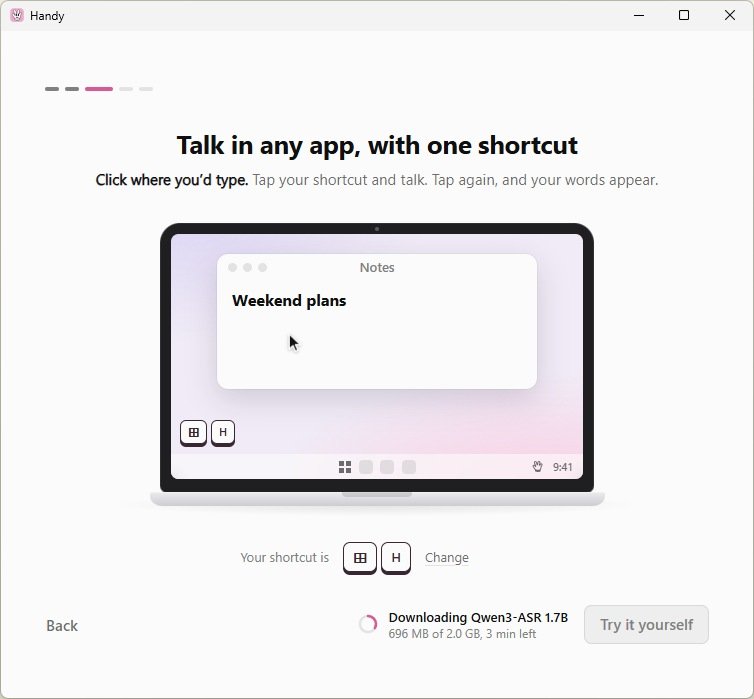
- Click into any text field: an email, a document, a chat box or an AI prompt.
- Press your Handy shortcut.
- Speak naturally.
- Release the shortcut (or tap it again in toggle mode). Handy transcribes what you said and pastes it at your cursor.
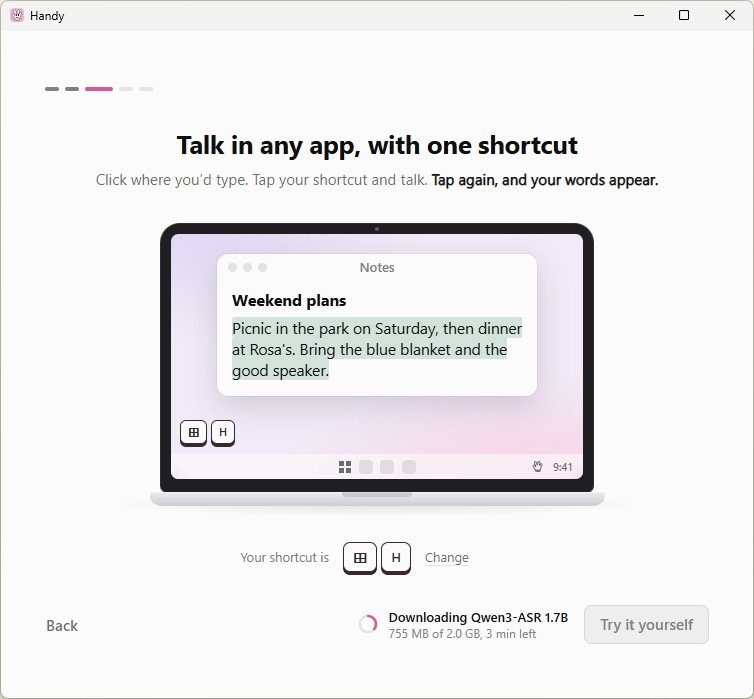
About the shortcut: on a Mac, the default is Option + Space. During my setup on Windows, Handy suggested Win + H, the same keys as Windows’ own dictation, which makes Handy a drop-in replacement. You can change the shortcut at any time in the settings.
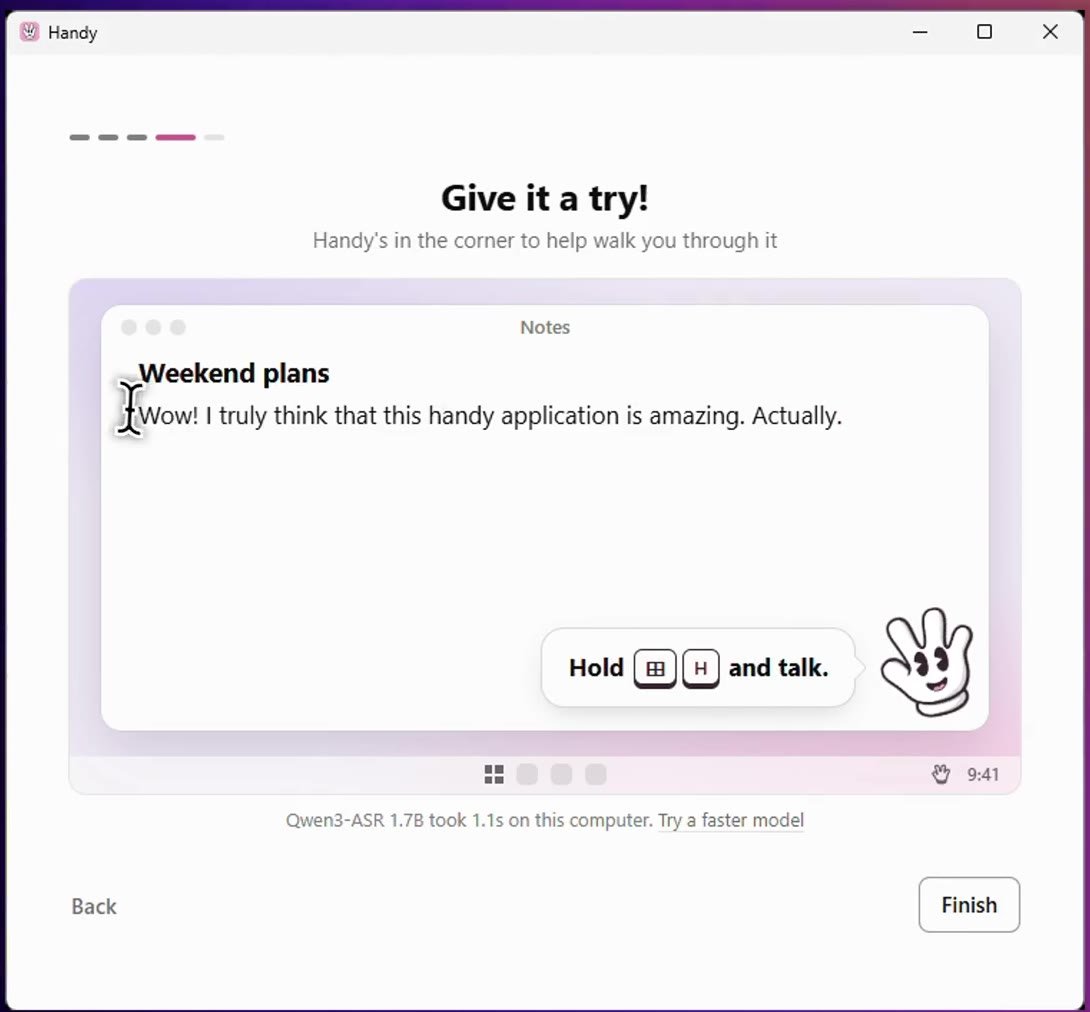
I tried it with a full sentence: “Wow! I truly think that this handy application is amazing.” The text appeared almost instantly, and Handy reported that Qwen3-ASR 1.7B took 1.1 seconds on my computer.
+Bonus: Handy settings worth changing
- Push-to-talk vs toggle: push-to-talk (hold to record) avoids leaving the mic on by accident. Switch it off if you’d rather tap once to start and once to stop.
- Cancel a recording: press Esc while recording.
- Keep it short: recordings under about 3 to 5 minutes work best.
- Free up memory: set Handy to unload the model after a while in Settings › Advanced, or right-click the tray icon and choose Unload Model.
- Start with Windows: turn on Launch on Startup and Start Hidden in Settings › Advanced, so Handy is always ready in the system tray.
- History: every transcription is saved in the History tab, so nothing is lost if a paste fails. Star one to keep it from being deleted.
Languages
With the Whisper models, Handy supports 99+ languages, and Whisper Small, Medium and Large can also translate your speech into English. During setup you pick the languages you speak, and Handy recommends a model based on them.
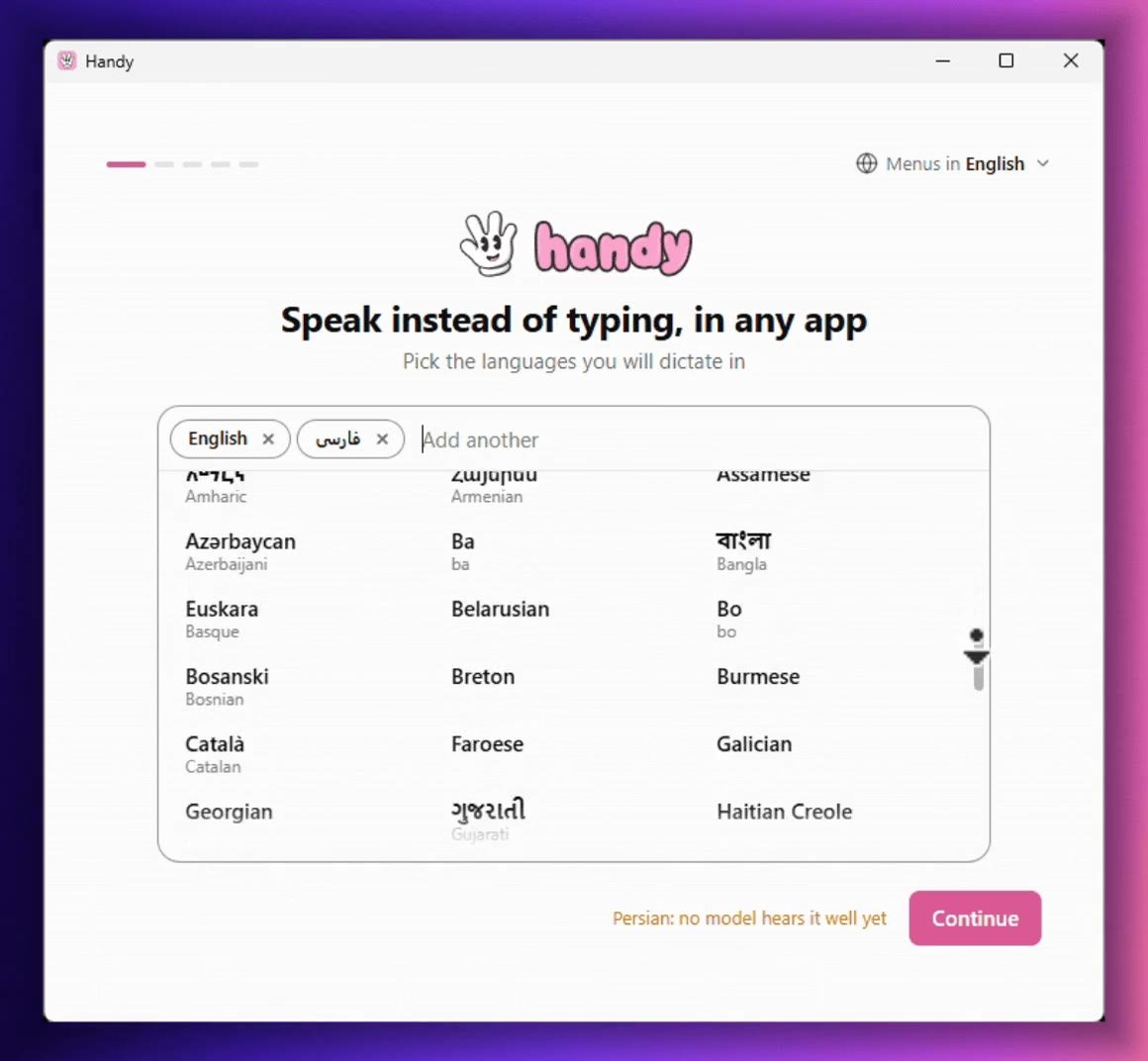
Not every language is equally good yet. When I added Persian, Handy was honest about it: it said no model hears Persian well yet and gave it a “D” accuracy grade, while English got an “A”. Results are better for widely spoken languages, so test yours before you rely on it.
Is it really offline?
Yes, for the part that matters. According to Handy’s FAQ, all speech-to-text happens on your device, and the only network requests are for downloading models and checking for updates. Once your model is downloaded, dictation keeps working without an internet connection.
Heads up: the experimental post-processing feature is the one exception. You have to switch it on yourself, and it can send your transcribed text (not your audio) to an AI provider such as OpenAI or Anthropic to clean it up. You can point it at a local model instead.
Handy vs Windows dictation
| Feature | Handy | Windows dictation |
|---|---|---|
| Price | Free | Free (built into Windows) |
| Open source | Yes (MIT) | No |
| Speech models | Your choice: Whisper, Parakeet, Qwen3-ASR and more | One built-in engine |
| Works offline | Yes, after the model download | Depends on your language and Windows settings |
| Languages | 99+ with Whisper | A smaller set |
| Platforms | Windows, macOS, Linux | Windows only |
| History of what you said | Yes | No |
Limitations to know about
- Not real-time. Handy records a segment, then transcribes it. Live streaming transcription is planned but not available yet.
- Microphone only. It can’t transcribe system audio such as YouTube videos or calls.
- No spoken punctuation commands. Saying “comma” or “new line” doesn’t insert them by default (post-processing with a custom prompt can do it).
- Administrator apps on Windows. Handy can’t paste into apps running as administrator unless Handy runs as administrator too. The text is still saved in History.
- Bigger models need a decent PC. The most accurate models are 1 to 2 GB and work best with a graphics card. On older machines, try Parakeet V3 or Moonshine.
Official Handy links
Download Handy only from these official sources. They also have the newest version, the full documentation and the bug tracker.
| Official link | What you’ll find there |
|---|---|
| handy.computer | The official website and download |
| github.com/cjpais/Handy | Source code, README and bug reports |
| All releases | Installers for every version and system |
| handy.computer/docs | Setup guide, models, FAQ and troubleshooting |
Handy is open-source software, but the Handy name, logo and brand belong to its developer. This is my own independent review and is not sponsored.
Frequently asked questions
Is Handy really free?
Yes. It’s open source under the MIT license, with no paid tier, account or subscription. If you find it useful, you can support the developer through the donate link on the Handy website.
Does Handy need an internet connection?
Only to download a model and check for updates. Transcription itself runs offline on your computer.
Which model should I choose?
For English and other European languages, the developer recommends Parakeet V3 for most people. For other languages, use Whisper Small or Medium. If setup recommends a model for your languages, as it did with Qwen3-ASR on my PC, that’s a good place to start.
How much space does Handy take?
The app itself is small. Most of the space is the model you download, from about 100 MB (Moonshine V2 Small) up to about 2 GB (Qwen3-ASR 1.7B).
Can Handy replace Windows dictation completely?
For most typing, yes. Set its shortcut to one you like (I use Win + H) and it works in any app where you can type.
My verdict
Handy is the best free dictation app I’ve used on Windows: fast, accurate with a good model, private, and free. Windows dictation is fine for a quick sentence, but if you dictate every day or want your voice to stay on your own computer, install Handy and start with the model its setup recommends.
